
Put the game on a TV
Every way to get the game on a big screen — and the one rule: never mirror the host phone, it shows the answers.
-
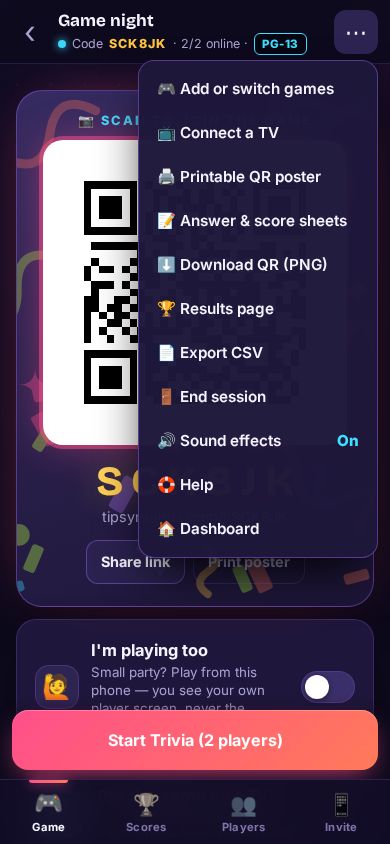
Step 1: Open Connect a TV
On the host screen tap ⋯ and then 📺 Connect a TV. A TV needs a free account.
-
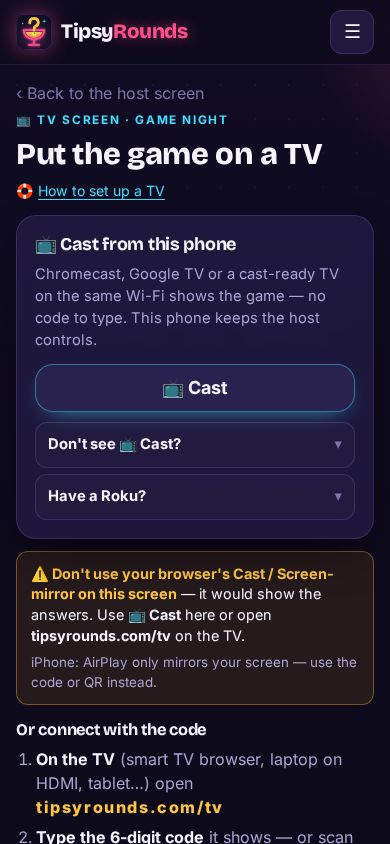
Step 2: Chromecast? Tap Cast
With a Chromecast or Google TV on the same Wi-Fi, tap 📺 Cast (Chrome on Android or a computer). Nothing to type.
-
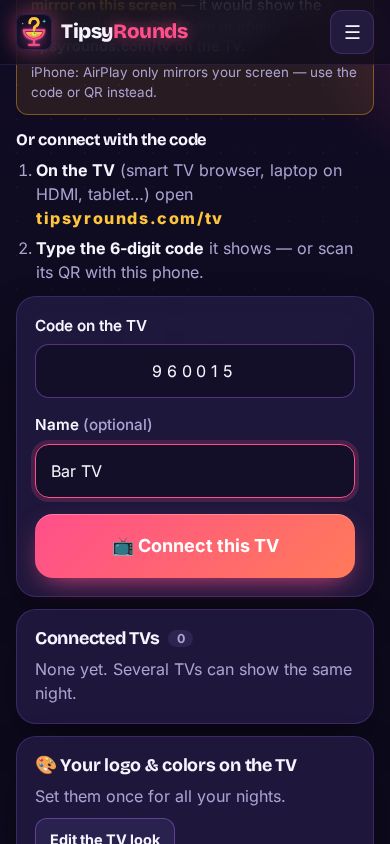
Step 3: Any other TV: the code
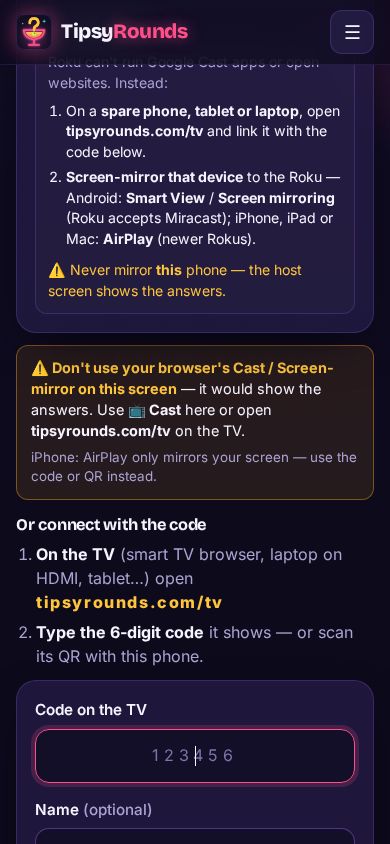
Open tipsyrounds.com/tv in the TV’s browser (or a laptop plugged in by HDMI), or the free TipsyRounds TV app on a Fire TV, Google TV or Roku, then type the 6-digit code it shows and tap 📺 Connect this TV.
-
Step 4: The TV shows the room view
The join QR, the questions, reveals and scores. It shows an answer only once you reveal it, and never host controls. On Room PIN nights it shows the PIN, which changes every minute, so only people in the room can use it.
📺 TV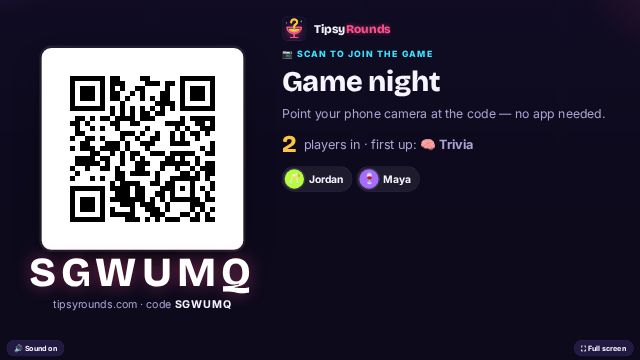
-
Step 5: Never mirror the host phone
Screen mirroring, AirPlay or your browser’s own Cast on the host screen would show everyone the answers. Use 📺 Cast or tipsyrounds.com/tv instead.
Good to know
- A TV is optional — every game works on phones alone.
- Several TVs can show the same night. Disconnect one any time from Connected TVs.
- Free nights show a few sponsor spots on the TV too; paid plans make them ad-free.
Still stuck? Contact us — a real person reads every message. · All help articles